


More counters on their own pages
PollNew Yes/no, multiple choice or stars – the result live in the image, no account, no cookies. CountdownNew Days until New Year’s Eve, a wedding or the holidays – or since a date. Counts the visitors on the side. Globe counterNew Spinning globe with spikes, cities, day and night – and live, who is here right now.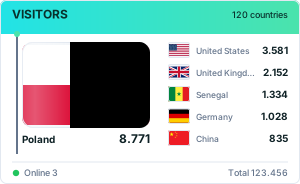 Flag countersNew
Boards, waving flags, ticker, podium, ring and cloud – 26 forms, all vector.
Flag countersNew
Boards, waving flags, ticker, podium, ring and cloud – 26 forms, all vector.
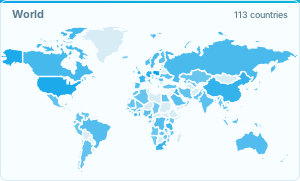 World mapsNew
World, continents and twelve countries with regions – background selectable, cities, period, live.
Showcase pageNew
A sample blog with counters in their places – next to the text, in the sidebar, in the footer.
World mapsNew
World, continents and twelve countries with regions – background selectable, cities, period, live.
Showcase pageNew
A sample blog with counters in their places – next to the text, in the sidebar, in the footer.
1 Choosing a design
Nothing matches all the filters at once. One of them has to go.
Custom design
Shape and colours are free; the preview updates instantly.
Simple one-line counters
Small and sharp at any size – they fit into a line of text, a footer or a sidebar.
Retro counters from 2006
Classic digit strips from the early days of the web. The full collection is further down.
Dashboard cards (vector)
Like a tile from an admin dashboard: an icon, a heading and today's and the total count in their own fields – twenty tidy, businesslike forms.
Glowing digits (vector)
Nixie tubes with glowing cathodes and the blue-green vacuum fluorescence of old VCRs – counters that glow.
Handwriting and sketch (vector)
A shaky frame on paper, a yellow sticky note, chalk on the board – in your device's handwriting font.
Stamp and seal (vector)
The count as a postmark with date or as a wax seal with embossed number – something for the footer that does not look like a tool.
Year cycle and set (vector)
A counter that changes its dress with the calendar – snow, Easter eggs, pumpkin, fir tree – and a set of count, flags and world map in one row.
Moments and records (vector)
Who is reading this page right now, the year grid with streak, the next milestone with an estimate, “You are visitor no. …”, the best day, day and night where your readers are, the visitor weather and where readers came from – eight counters nobody else offers.
Origin and rhythm (vector)
Flag collection, who is here now, continents, the farthest country, the weekly rhythm, languages, time on page and scroll depth – seven answers to "where from, when, how long", one query each.
No visible counter
Counts but shows nothing – or just a small icon leading to the statistics.
With chart
Ten chart types in crisp SVG instead of the 2006 bitmap graphics.
Tiny counters
Five 88×31 buttons and five strips from 15 pixels tall – for signatures, footers and link lists.
Picture strips
Each digit sits on its own picture – slate, wooden block, postage stamp. Ten motifs built into the counter, nothing loaded from elsewhere.
Holidays and seasons
Christmas tree, pumpkin, Easter egg – ten motifs to swap when the season does.
Sport and fitness
Ball, running track, trophy – ten motifs where something is heading for a goal.
Food and drink
Coffee, pizza, beer – twenty kitchen motifs, each with a pause in its cycle.
Hotel and holiday
Suitcase, palm tree, cable car – twenty motifs where something rides, flies or floats.
Magazines and blogs
Newspaper, quill, microphone – twenty editorial motifs; text is drawn as bars, the same in every language.
Clothing and style
Hanger, seam, catwalk – twenty motifs where fabric hangs, swings and settles.
Space
Planets, rockets and moons – ten motifs in motion while the number stays put.
Music
Turntable, metronome, level meter – ten motifs in time, without a single invented reading.
School
Blackboard, compass, school clock – ten classroom motifs, each with a movement of the hand.
Christian motifs
Candle, cross, church window – ten quiet motifs; the slowest movement takes 40 seconds.
Flowers
Blossoms, vines and a bee – ten motifs that grow, sway and start over.
Animals
Cat, dog, penguin – ten animals, each given away by a single movement.
Nerd culture
Dice, pixel figure, floppy disk – ten motifs that step instead of glide.
Internet
Wi-Fi, browser, server rack – ten motifs with something travelling from one point to another.
Statistics panels (vector)
Today, yesterday, total and online – ten layouts, ten colour worlds, crisp on every screen.
Animated · building up
The picture builds itself, reveals itself, counts itself up – then rests.
Animated · with weight
Motion with inertia: things drop in, overshoot, ease out.
Futuristic · calm
Future without motion: geometry, edges, light.
Futuristic · in motion
Restrained motion that stops under “reduce motion”.
Retro
CRT, split-flap, pixel grid – crisp, not blurry.
Digital
Plain data display – shows today and the week, not just the total.
Unexpected
Unusual pictures for a plain number.
Futuristic
Hologram, neon, radar – restrained motion that stops under “reduce motion”.
New · Modern
Razor sharp on any screen, light and dark, under 1 KB.
Flag counters (vector)
Same idea as the classics below, but sharp on every screen – and in every size, from a one-line signature to a wall of flags.
Classics since 2006 (127)
Statistics panels
Show today, yesterday, total and visitors online.
With trend chart
Plus a small chart of the last few days.
Breakdowns
Pie charts by country and screen resolution.
Flag counters
One row per country: the flag and how many visitors came from there.
Compact
Small and unobtrusive, fits any footer.
Counter strips
Just the count, in many digit designs.
Show all 100 designs
2 Options
The live version is a small script instead of an image. It asks every 30 seconds who is there right now and counts exactly once – when the map loads.
Transparent fits light and dark pages alike. Everything sits in the image address, there is nothing to save.
The 2006 bitmap variant - 50 fonts, 15 templates. Keeps existing counters editable.
Shows one flag per country and how many visitors came from there. How many countries fit follows from layout and size.
Multiple selection with Ctrl or ⌘. Hidden countries are still counted, they just do not appear in the image.
Shows next to the number how the last seven days went. Measured, that costs 120 bytes over the wire – on the pill the line sits behind the number, on the plain counter beneath it. A counter without history shows no line and stays the same size.
The counter carries both versions and shows the one matching the visitor's setting – the device's setting, not this page's. Measured, that costs about a quarter more, not twice as much: gzip sees the same drawing twice. The figures are on "What the counter weighs".
Everything here is optional – the counter works without it.
If the link gets lost
Anyone who knows the counter number can come back to these statistics. Anyone who would rather not remember it can enter an e-mail address: we send exactly one message with the link inside. Only the click in it stores the address – whoever did not enter it themselves throws the message away, and nothing is stored.
The address serves one single purpose: to send this link again on request. No advertising, no passing on, no newsletter. It can be removed here again at any time.
Google reCAPTCHA checks this submission against abuse; data is sent to Google. The script loads only when this form is opened.
Every click on a link is counted as an event, named after its target – not after the link text. Pages on the site itself are named by their path ("kontakt"), outgoing links by their host ("ex-facebook-com"). The automatic counting has its own limit: at most 70 different names; once it is reached, no new one is added. The remaining places are kept for names that are set by hand.
On by default – clearing the box switches it off. Counts which page follows which, as a total and not as one person’s path. Two views belong together if less than half an hour lies between them. A transition appears in the report only from 5 times on.
Adds data-screen="1" to the script code. The script then reads these three values from the visitor’s device. That is an access to terminal equipment; depending on the law that applies to the site, it may need the visitors’ consent. Off by default.
More options
Hits count every page view, unique visitors count each person once per day. The visitor figure is the sum of the daily values; it has been recorded since 1 January 2026 and is therefore lower than the hit count on older counters.
2 to 20 characters, letters, digits, "-" and "_" only. /live/<number> keeps working alongside it. Empty field = no alias.
The address of the site and a short name. The counter has to be on the page – that is checked at sign-up. With this ticked, the code also contains the four ring links. Install it first, then sign up here.
Signed up. A person will look at it, then the entry appears in the ring.
The ring is a list among equals, the home page is a shop window – so we ask separately. Without the tick the entry stays only in the ring.
The ring is a list among equals, the home page is a shop window – so we ask separately. Without the tick the entry stays only in the ring.
Empty field = no password. With one, /live/<number> asks for it before showing the numbers. At least 6 characters, and it cannot be recovered – worth writing down.
A single address or a whole range (83.10.1.0/24). A range is usually the better choice: most connections get a new address every day, but the network around it stays the same. What goes in here is stored in the clear and can be removed at any time. This request is coming from right now.
What appears above and below the globe on your page. Pick form and look up here – the globe on your page then shows them like that, without the switches. “None” leaves only the globe and the link below it.
Vector counters only: they stay sharp at any size. The value sits in the image address, there is nothing to save.
3 Adding the code
Number 7334245971 stays. Even with a different design, counting continues in the same statistics; a second website needs its own counter.
Already have a Stats4U counter? Keep its number
A new look does not need a new number. With the old one, the new code keeps counting in the same statistics, including the total so far.
The start value, name, password and other settings of this counter stay as they are. They can be changed with the management link. Lost the management link?
Markdown, BBCode and HTML <img> embed the plain image. It counts just the same and does report which page it was on – the server reads that from the referrer. The only thing left open is where the visitor came to the site from: that is known to the browser alone, and only the HTML version with the script can ask.
Without a script the counter does not know which page it is on, so the page list stays empty. With the address here, the page gets a line; a leading slash is enough, the counter takes the rest from the origin. Better left empty if the same code sits on many pages, in a forum signature for instance – a fixed entry would be wrong for every other page.
Management link – save it now
Only this link opens the settings of this counter later: goals, time zone, excluding your own visits and more. There is no account – if the link is lost and no email address is on file, there is no way back in. Best bookmark it right away.
Where does it go?
chomikuj.pl
The counter goes into the chomik description ("opis"). Descriptions do not accept scripts, so the "HTML <img>" tab replaces the first line, and the page address goes into the field below, so the statistics know where the counting happens.
WordPress
Appearance → Widgets, or anywhere in the block editor: a „Custom HTML" block takes the code. It has to be the „Custom HTML" block, not „Paragraph" – a paragraph shows the code as text instead of running it.
Download the plugin (zip) – shortcode [stats4u] or automatically in the footer
WordPress.com
Careful, this is not the same as a self-hosted WordPress: on the free plan WordPress.com strips script, iframe and embed out of the „Custom HTML" block. The counter then simply does not appear, with no error. Scripts need a paid plan with hosting features switched on. The Markdown tab is the one to use here – the plain image gets through on any plan.
Blogger
Layout → Add a Gadget → HTML/JavaScript. The code goes in there and gets saved – done.
Ghost
Settings → Code injection → Site footer. If the counter should sit somewhere specific rather than at the very bottom, it belongs in the theme instead.
Wix
Add → Embed → Embed HTML → Enter code, paste, update. Two things to know: Wix puts the code into a sandboxed frame, so the counter sees the address of that frame and not of the page it sits on – the page list stays empty here. And the address has to be https, Wix will not accept http.
Squarespace
Edit page → Add block → Code. JavaScript and iframes need the Core plan or higher there; on Personal and Basic the block stays empty. HTML and Markdown work on every plan though – the block switches to Markdown, and the Markdown tab supplies the code.
Neocities
index.html opens in the editor and the code goes in before </body>. That is all there is to it – custom HTML is allowed there without restrictions.
Hugo, Jekyll, Astro
Into the template, not into the post: layouts/partials/footer.html (Hugo), _includes/footer.html (Jekyll) or src/components/Footer.astro (Astro). If the counter should appear in one single post only, the Markdown tab does it, written straight into the text.
Count clicks and downloads too
An event is something someone does – a click on "Contact", a submitted form, a download. The attribute goes on the element, or the function gets called:
<a href="/contact" data-s4u-event="contact">…</a>

<script>s4u.event('form-sent');</script>
At most 100 different names per counter and 300 events per hour and address. The name is lowercased, spaces become hyphens. Names that look like personal data, such as an @, a long run of digits or a long code, are rejected. The automatic click counting may use at most 70 of the names; the rest is kept for names that are set by hand.
Moving from another counter
What comes along: nothing. The old total cannot be carried over – no counter service hands its numbers to another, and a number we simply set would be made up. The new counter starts at zero. Anyone wanting to keep the old total can leave the old image beside it as a quiet memento, or write the old number into the text.
Checking that it works
Address of the page the counter should be on. It is fetched once, and whatever turns up is reported here.
Is something missing from Stats4U? One sentence is enough: Write to us