구글 태그 관리자에 Stats4U를 넣는 7단계
2026년 8월 갱신: 아래 화면 사진 속 태그 관리자 화면은 이제 없고, 5단계인 document.write 선택도 더는 필요하지 않습니다. 이 안내의 최신판이 있습니다. 원래 단계는 아래에 그대로 두었고, 표현만 다듬었을 뿐 내용은 그대로입니다.
구글 태그 관리자 컨테이너를 이미 넣어 둔 모든 사이트를 위한 글입니다!
이 글은 Stats4U의 통계 카운터를 구글 태그 관리자 컨테이너에 넣는 방법을 보여 줍니다. 먼저 저희 사이트에 있는 여러 통계 카운터를 설명하겠습니다.
- 1. 보이지 않는 카운터
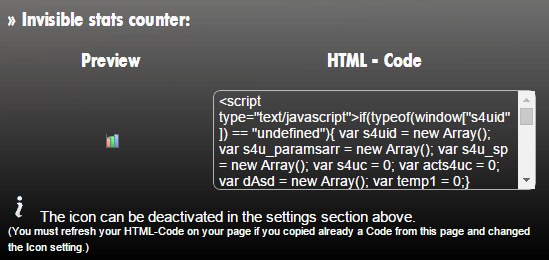
- Stats4U는 보이지 않는 카운터를 제공합니다. Stats4U.net 메인 페이지에서 바로 고를 수 있습니다. 누르면 통계가 열리는 작은 통계 아이콘과, 아이콘이 아예 없는 것 가운데 고릅니다:
2. 방문자 수가 보이는 카운터
방문할 때마다 숫자가 올라가는 진짜 "카운터"가 다른 선택지입니다.
그림이 있는 카운터는 구글 태그 관리자 컨테이너를 넣은 자리에 눈에 보이는 결과를 만들어 냅니다:
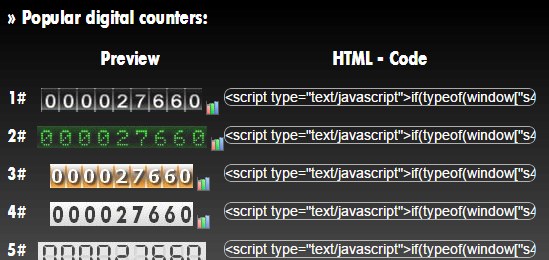
구글 태그 관리자에서는 첫 번째 선택지를 권합니다. GTM은 여러 자리에 놓일 수 있고, Stats4U 그림의 위치를 제어할 수 없기 때문입니다.
코드를 태그 관리자에 넘기기
카운터 모양을 고르고 나면 코드는 곧바로 구글 태그 관리자로 들어갑니다.
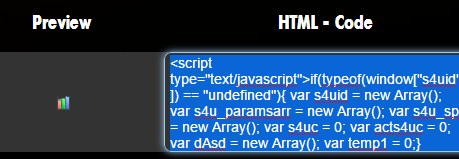
1. 원하는 코드를 복사합니다:
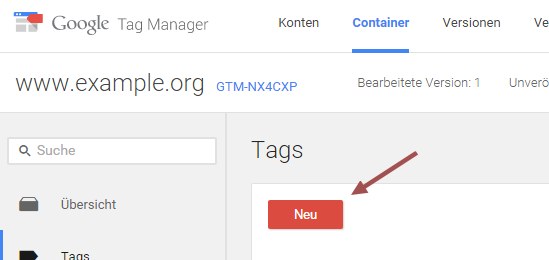
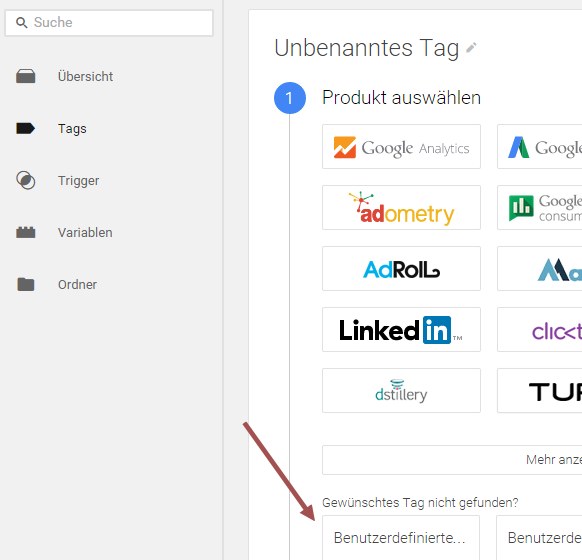
2. 컨테이너에 새 태그를 만듭니다
3. "맞춤 HTML"을 고릅니다:
4. 복사한 Stats4U 코드를 태그에 붙여 넣습니다
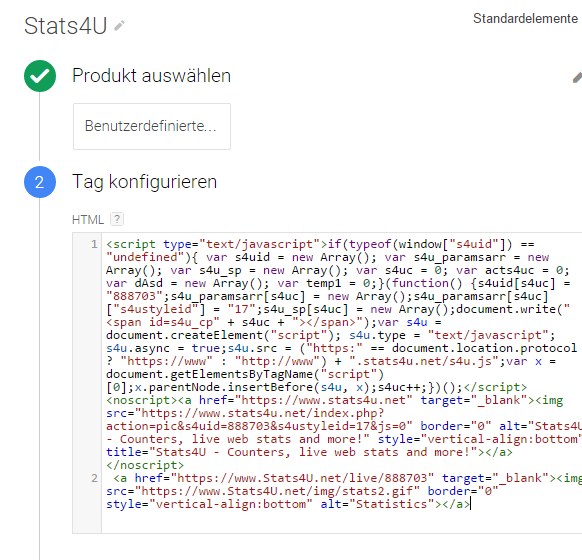
5. document write를 고릅니다

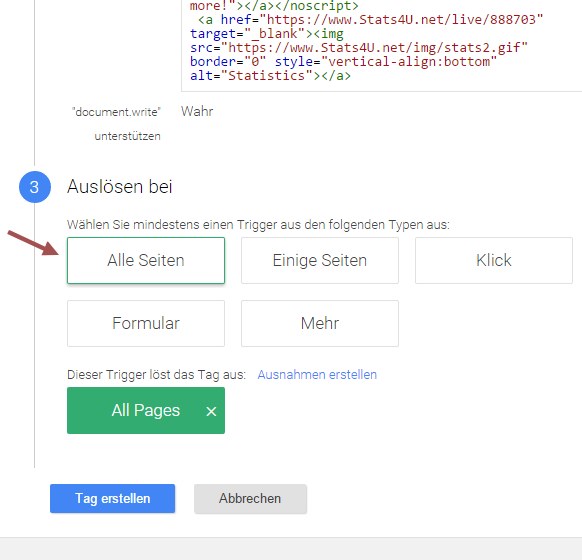
6. 실행 규칙으로 "모든 페이지"를 고릅니다
7. 저장하고 게시합니다!
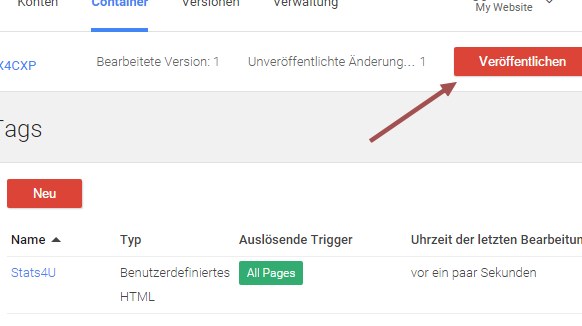
끝났습니다! 이제 카운터가 사이트 방문자를 세고 있습니다.
앞으로도 더 많은 이야기와 기능을 보시려면 저희 블로그를 다시 찾아 주세요!
광고